
Portal Download
Collect every report export you request, in CSV or Excel, and track each job until the file is ready.
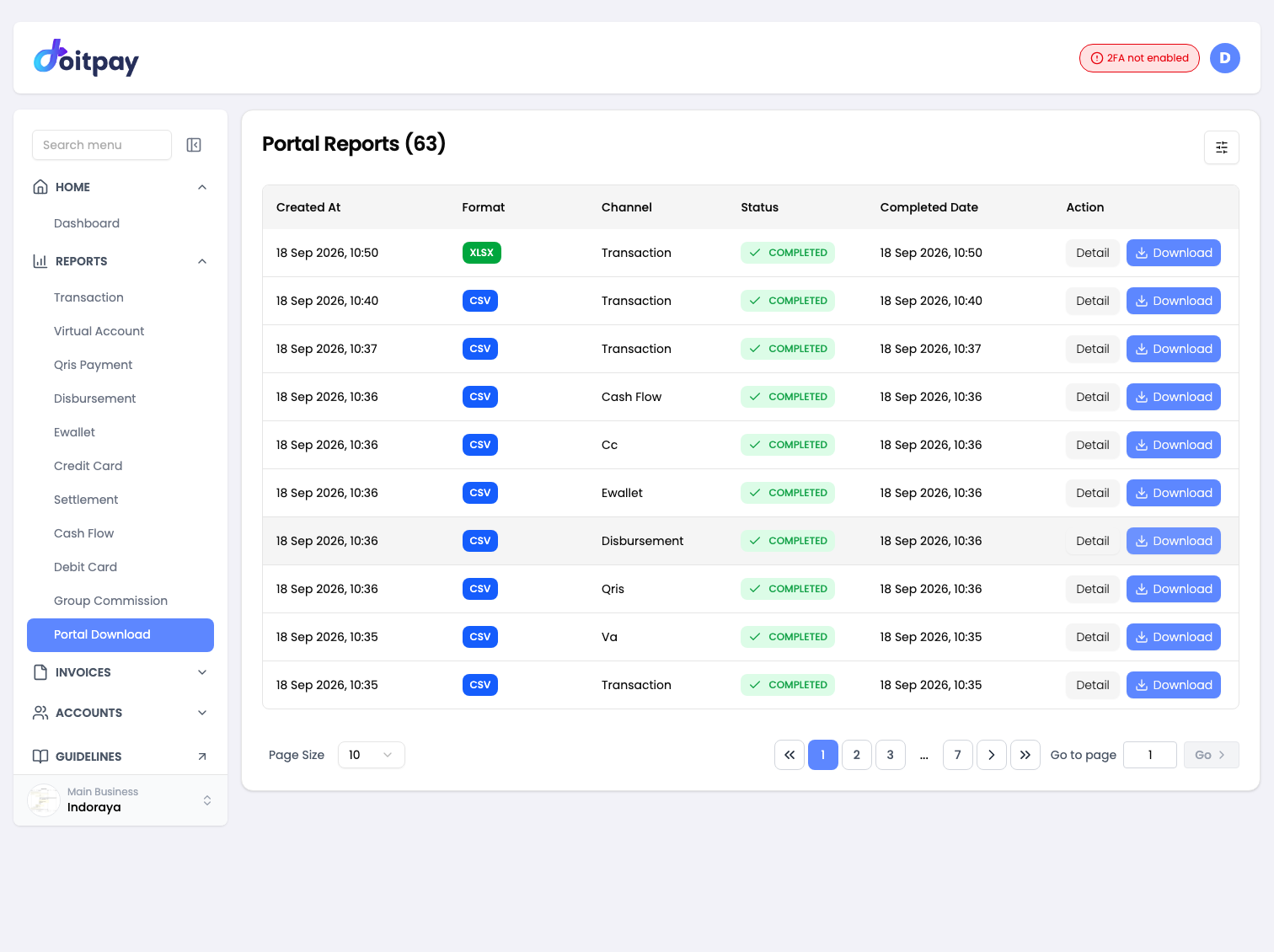
Portal Download is the single place where every export you request is collected. Files no longer download straight to your browser. You ask for an export on a report page, then collect it here.
How It Works
- On any report page, set your date range and filters
- Click Export and choose CSV or Excel (XLSX)
- The dashboard opens Portal Download and your request appears as a job
- Wait for the status to reach COMPLETED
- Click Download on that row
Accessing Portal Download
Navigate to REPORTS > Portal Download from the sidebar.
Page name
The sidebar item is called Portal Download and the page heading reads Portal Reports. They are the same page.
Understanding the Table
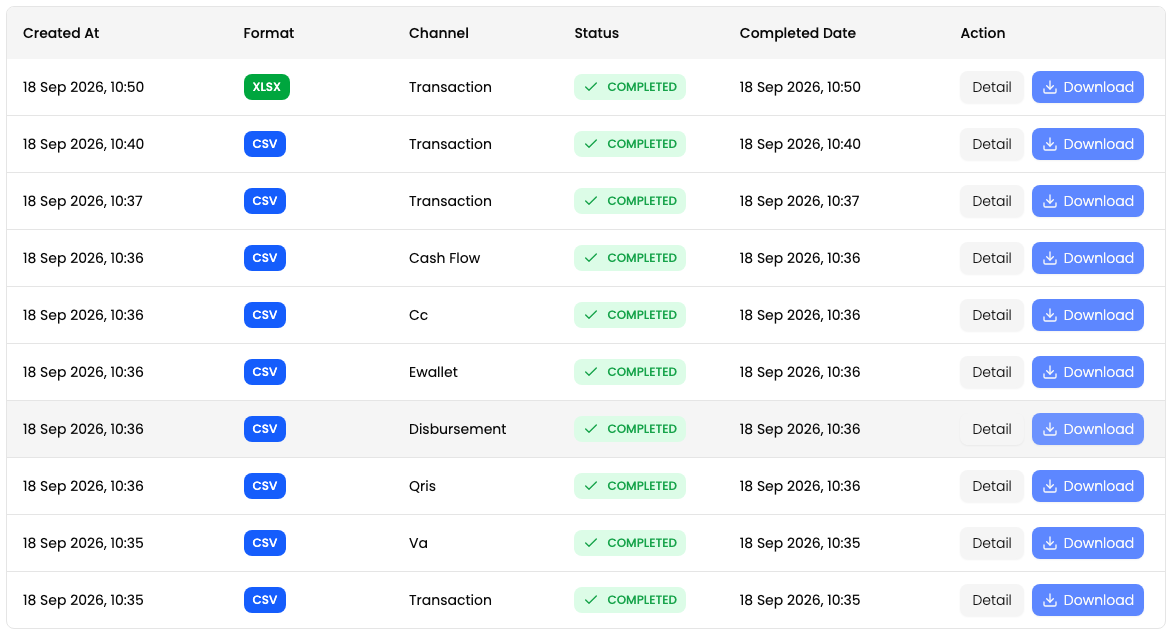
| Column | What it shows |
|---|---|
| Created At | When you requested the export |
| Format | CSV or XLSX, shown as a badge |
| Channel | Which report the export came from, for example Transaction or Cash Flow |
| Status | Where the job is in the queue |
| Completed Date | When the file became ready |
| Action | Detail for the full job record, Download for a finished file |
Format availability
Most reports export as CSV or Excel (XLSX). Cash Flow exports as CSV only.
Status Values
| Status | Meaning | What to do |
|---|---|---|
| QUEUED | Accepted and waiting to be built | Wait, this is usually brief |
| PROCESSING | The file is being generated | Wait |
| COMPLETED | The file is ready | Click Download |
| FAILED | The export could not be produced | Narrow the date range and try again |
The list updates on its own. A job that finishes while you are on the page becomes downloadable without a reload.
Checking a Job
Click Detail on any row to open the full job record.
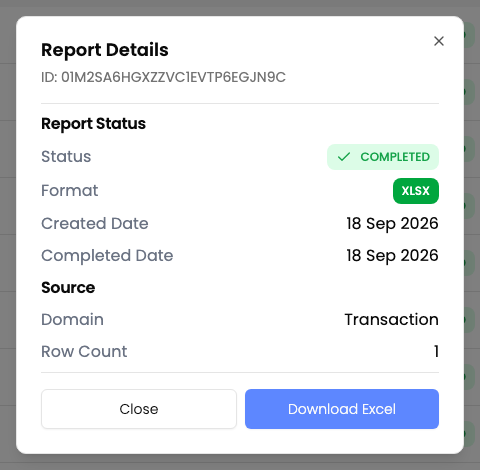
| Field | What it shows |
|---|---|
| ID | The job reference, useful if you contact support |
| Status | Current state of the job |
| Format | CSV or XLSX |
| Created Date | When you requested it |
| Completed Date | When the file was ready |
| Domain | Which report it came from |
| Row Count | How many rows the file contains |
The button at the bottom matches the format, for example Download Excel for an XLSX job.
Downloading a File
- Find your job in the list, newest first
- Check the Status is COMPLETED
- Click Download on that row, or open Detail and use the download button there
- The file saves to your computer
Tip
The file name tells you what is inside. It carries the business name, the report, the date range, and the format, so a folder of exports stays easy to tell apart.
Common Questions
Q: I clicked Export and no file appeared. Where is it?
Check Portal Download. Exports are built in the background and collected there. They do not download directly from the report page.
Q: Which format should I choose?
Use CSV if you are feeding the data into another system. Use Excel (XLSX) if you want to open it in a spreadsheet with formatting already applied.
Q: Does the export match my filters?
Yes. The file matches what the table showed when you clicked Export. Set the date range and filters first.
Q: My job shows FAILED. What now?
A very large date range is the usual cause. Narrow it and request the export again.
Q: Why are there jobs here from reports I did not run today?
Portal Download keeps your recent history, not just today. Older jobs stay listed so you can find a file you requested earlier.
Q: Can I have more than one export running?
Yes. Request as many as you need. Each one appears as its own row.
Q: How long do jobs stay in the list?
Recent jobs stay visible. If an old one is no longer listed, request the export again.
Best Practices
- Set filters before exporting: the file matches the table, so filter first
- Pick the right format: CSV for systems, XLSX for people
- Check status before leaving: note whether your job is still processing
- Use the Detail view to confirm contents: Row Count tells you whether the export caught what you expected
- Download promptly: collect files you need while the job is listed