
Cash Flow Reports
Track every money movement in your Doitpay account, verify your Disbursement and Payment balances, and export the ledger for reconciliation.
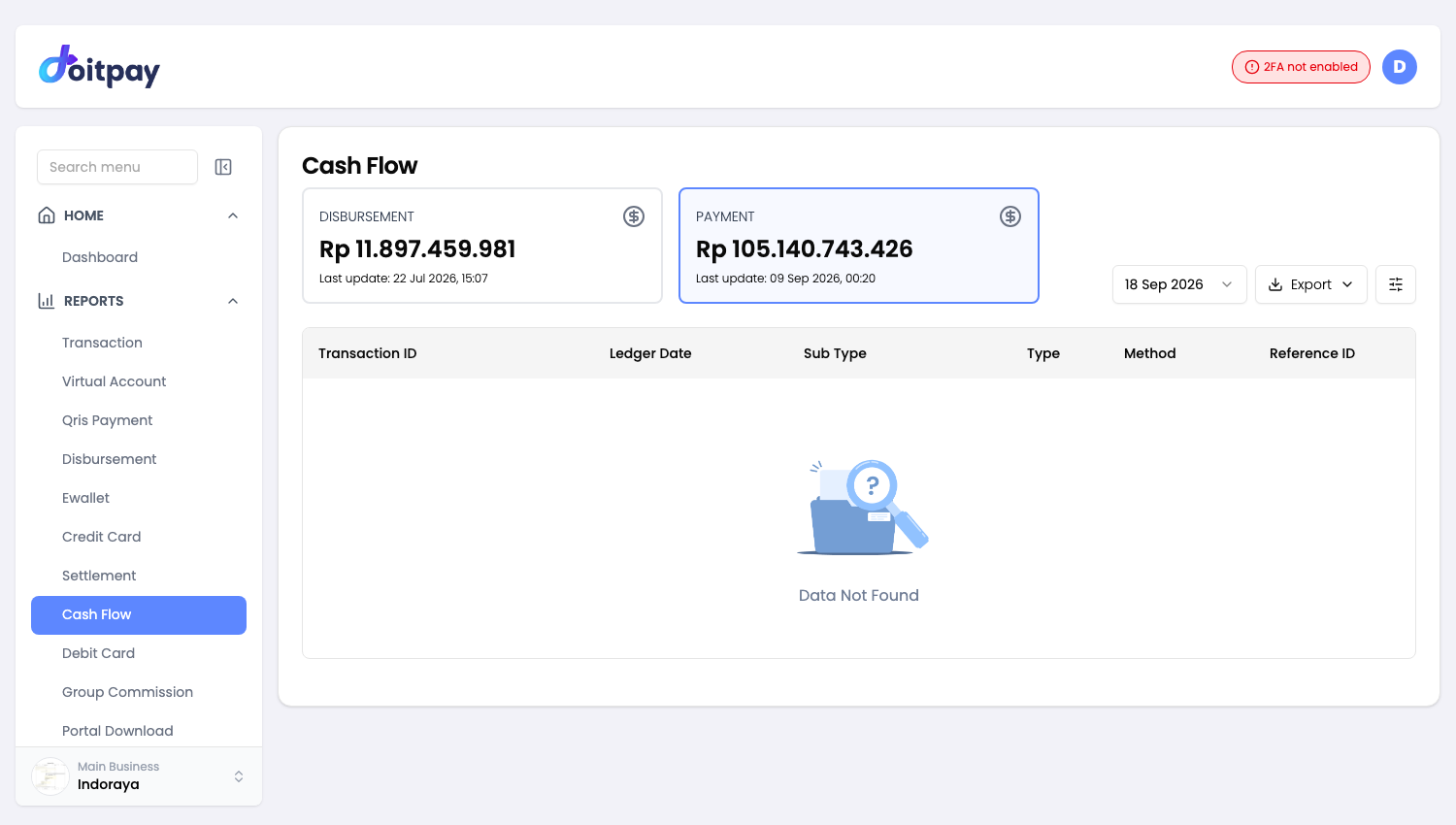
The Cash Flow report is the complete ledger of your Doitpay account. Every credit and debit that touches your balance is recorded here. Use it for accounting, reconciliation, and day to day balance checks.
Why Use Cash Flow
- Complete audit trail: every fund movement is recorded with its own reference
- Balance verification: see your Disbursement and Payment balances with the last update time
- Reconciliation: match Doitpay records against your own system
- Filtering: narrow the ledger by type, sub type, method, or transaction ID
- Export: download the ledger as CSV or Excel for bookkeeping
Accessing Cash Flow
Navigate to REPORTS > Cash Flow from the sidebar.
Balance Summary Cards
Two cards sit at the top of the page and show your current balances.

Disbursement
The Disbursement balance is the money available for outgoing transfers. This covers vendor payouts, refunds to customers, and salary transfers. When you send a disbursement, the amount is deducted from this balance. To top it up, use INVOICES > Deposit VA.
Payment
The Payment balance is the money collected from incoming customer payments across all channels. This includes Virtual Account, QRIS, E-Wallet, Credit Card, and Debit Card. As customers pay, amounts are credited to this balance. The funds are later settled to your bank account through the settlement process.
Note
Each card shows a Last update timestamp. If the timestamp looks old, refresh the page to pull the latest balance.
Selecting a Date
Cash Flow shows one day at a time. Click the date button at the top of the table to open the calendar.
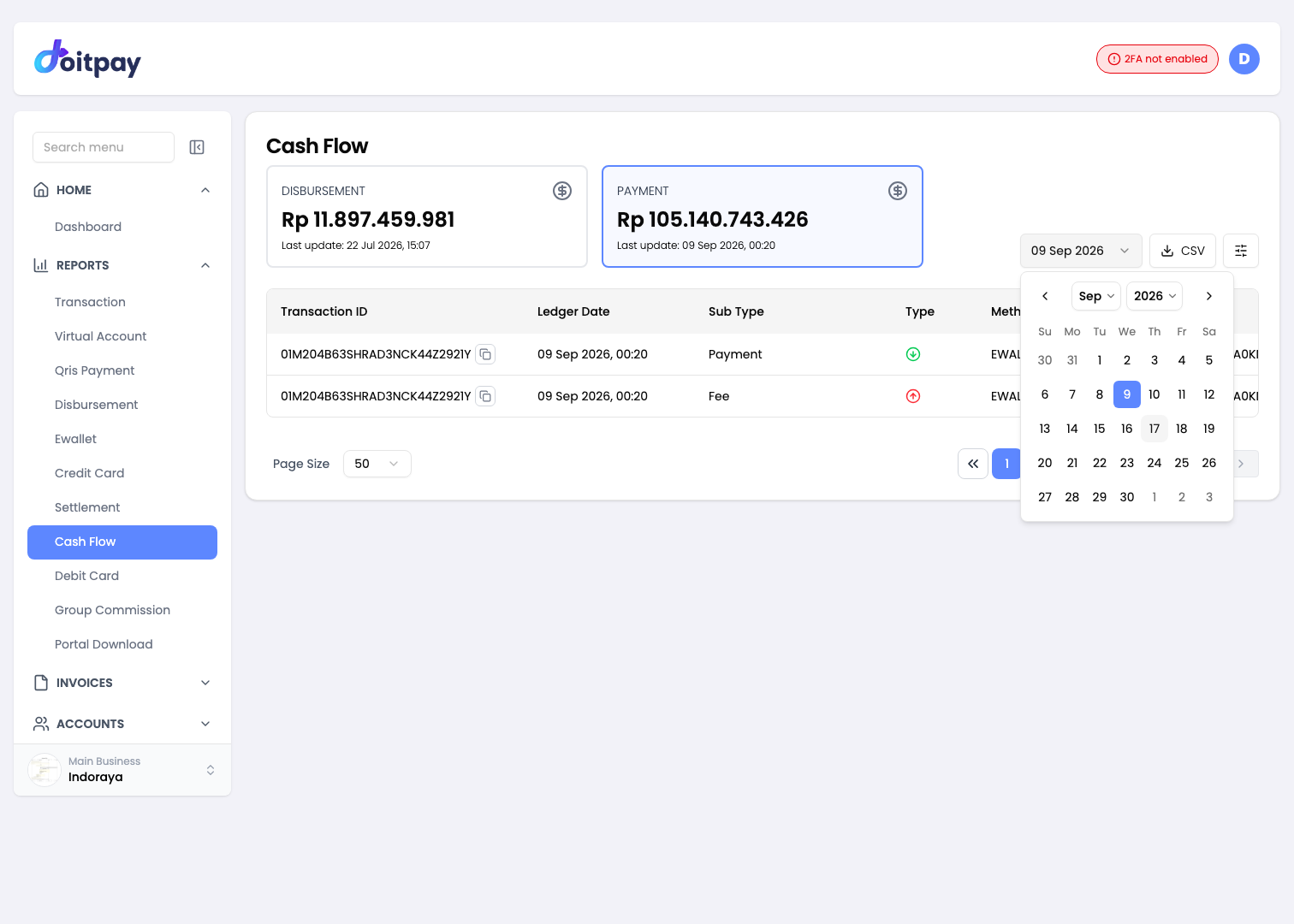
The calendar lets you pick any date that has records. Use the month and year controls at the top of the panel to jump to a different period, then click a day.
Note
Only a single date can be selected. The ledger request is sent as one day range.
Understanding the Table
The table lists every ledger entry for the selected date, with the most recent at the top.

The table has more columns than fit on screen. Scroll the table sideways to reach the rest.
| Column | What it shows |
|---|---|
| Transaction ID | Doitpay identifier for the transaction. Click the copy button to copy it |
| Ledger Date | Date and time the entry was recorded, shown in your local time |
| Sub Type | The specific entry type, for example Payment, Fee, Settlement, or Deposit |
| Type | Credit or Debit, shown as a coloured icon |
| Method | The channel involved, for example QRIS, VIRTUAL ACCOUNT, or EWALLET |
| Reference ID | Reference used to cross check the entry in other reports. Has a copy button |
| Amount | The value of this single ledger entry |
| Initial Balance | Your balance before this entry was applied |
| Ending Balance | Your balance after this entry was applied |
| Complete Date | When the transaction finished processing |
Tip
One transaction can create more than one ledger entry. A QRIS payment for example produces a Payment entry that credits your balance and a Fee entry that debits it. Both share the same Transaction ID and Reference ID, and the Ending Balance of the first entry becomes the Initial Balance of the next.
Reading the Type Column
The Type column uses an icon instead of text.
| Icon | Meaning |
|---|---|
| Green circle arrow | Credit. Money added to your balance |
| Red circle arrow | Debit. Money taken out of your balance |
Sub Types
Each entry has a sub type that tells you what kind of movement it was.
| Sub Type | Meaning |
|---|---|
| Payment | Customer payment received |
| Fee | Transaction or service fee charged |
| Balance Adjustment | Manual adjustment by Doitpay for fee deduction, fee refund, or disbursement balance pre-fund |
| Disbursement | Outgoing fund transfer |
| Deposit | Pre-fund deposit credited to your account |
| Withdrawal | Funds withdrawn from your balance |
| Withdrawal Reversal | A withdrawal that was reversed and returned |
Methods
The Method column shows which channel or process produced the entry.
Virtual Account, QRIS, EWALLET, CC, DEBIT CARD, DISBURSEMENT, WITHDRAWAL, INSTANT DEPOSIT, GROUP COMMISSION, and ADJUSTMENT BALANCE.
Filtering Transactions
Use the filter button at the right of the toolbar to narrow the ledger. The filter opens a panel on the right side of the page.
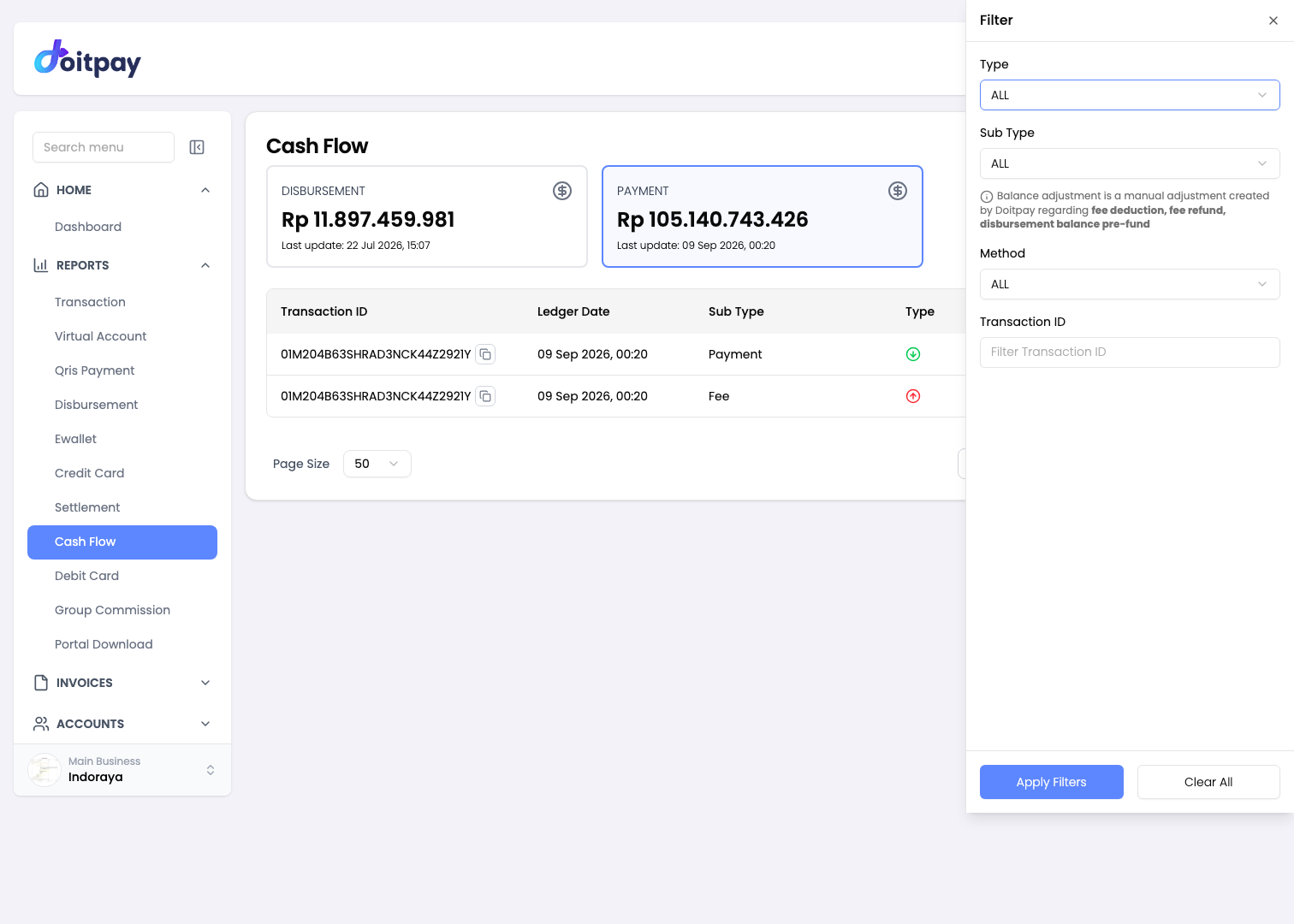
| Filter | What it does | Values |
|---|---|---|
| Type | Show only credits or only debits | ALL, CREDIT, DEBIT |
| Sub Type | Show one kind of entry | ALL, PAYMENT, FEE, BALANCE ADJUSTMENT, DISBURSEMENT, DEPOSIT, WITHDRAWAL, WITHDRAWAL REVERSAL |
| Method | Show one channel or process | ALL, ADJUSTMENT BALANCE, CC, DEBIT CARD, DISBURSEMENT, EWALLET, GROUP COMMISSION, INSTANT DEPOSIT, QRIS, VIRTUAL ACCOUNT, WITHDRAWAL |
| Transaction ID | Find a specific transaction | Type or paste the ID |
Click Apply Filters to run the filter. Click Clear All to reset every filter back to ALL and close the panel.
Tip
Every filter starts at ALL, so the ledger is unfiltered until you change something. If the table looks empty, open the filter panel and click Clear All to make sure a filter is not hiding your entries.
When There Are No Records
If the selected date has no ledger entries, the table shows Data Not Found.
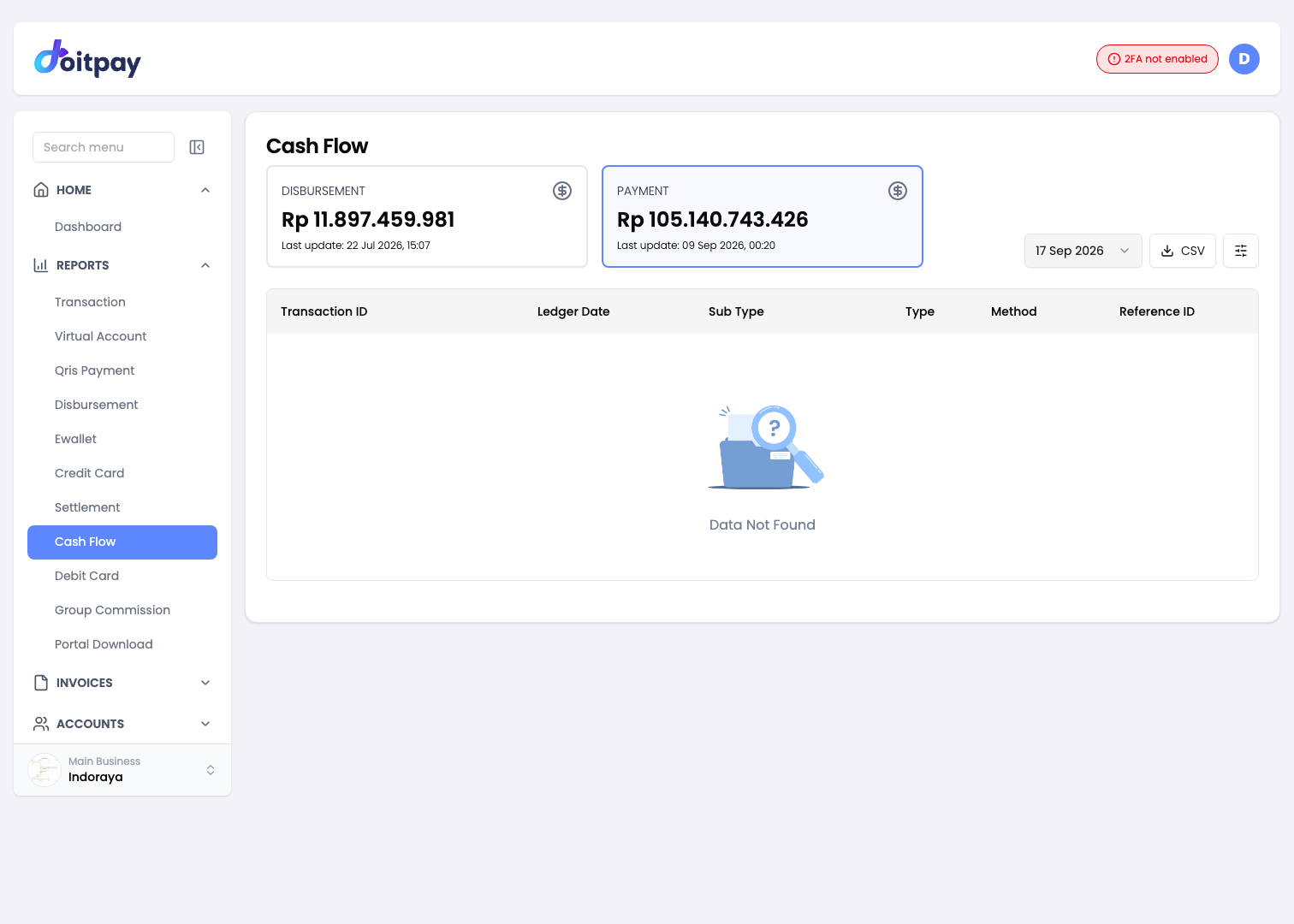
Try another date. A date with no activity is normal for accounts that do not transact every day.
Page Navigation
Controls sit at the bottom of the table.
- Page Size: choose how many records to show on one page
- Page numbers: move between pages
- Go to page: jump straight to a page number
Exporting Data
Click the CSV button in the toolbar to request an export of the ledger.
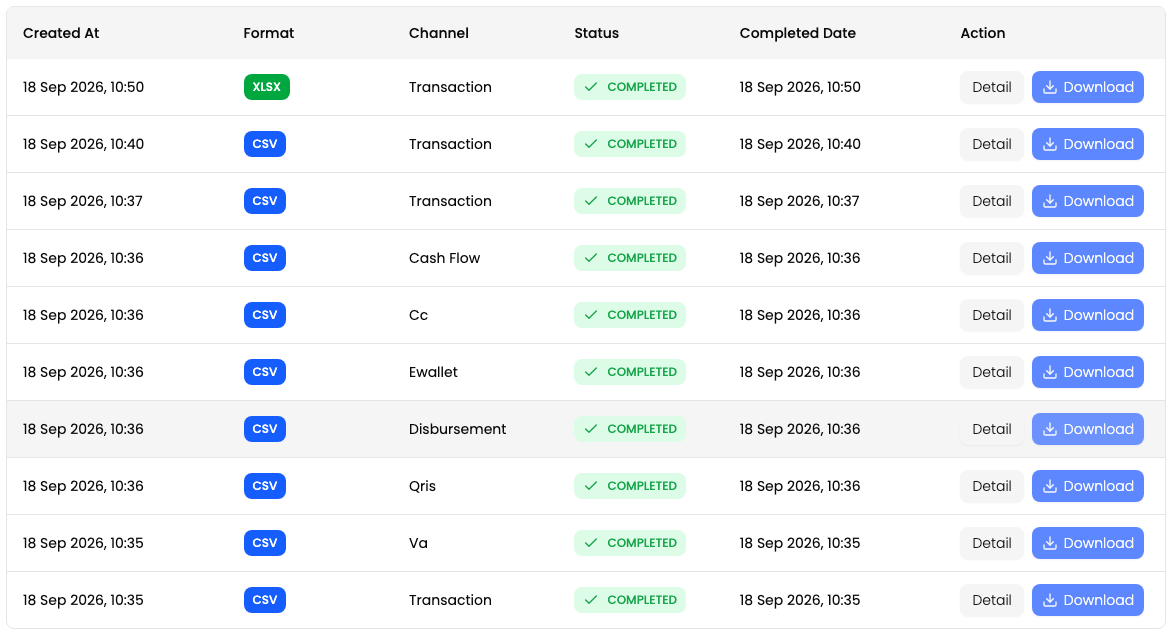
Cash Flow exports as CSV only.
The file is prepared in the background instead of downloading straight away. After you click CSV, the dashboard opens Portal Download where the job appears. When the status shows COMPLETED, click Download on that row to get the file. Detail opens the full job record including the row count.
Exports from every report page collect in the same list, so Portal Download is the single place to pick up any file you have requested.
Note
The CSV button does not download the file straight away. It queues the export and takes you to Portal Download.
Reconciling with Cash Flow
- Pick the date you want to reconcile
- Check the Disbursement and Payment balance cards at the top
- Filter by Type, Sub Type, or Method to focus on one kind of movement
- Match each entry against your own records using the Reference ID
- Cross check against the matching report page, for example QRIS Payment or Virtual Account
- Export the ledger from Portal Download and work through it in a spreadsheet
Common Questions
Q: Why does my balance not match what I expect?
Check for pending transactions that have not completed, fees that were deducted, settlements already processed, and disbursements that have gone out. Filtering by Sub Type is the fastest way to isolate each of these.
Q: What do the coloured icons mean?
A green circle arrow marks a credit, money coming in. A red circle arrow marks a debit, money going out.
Q: Why do I see two rows for one payment?
A payment can create a credit entry for the amount and a debit entry for the fee. Both rows carry the same Transaction ID and Reference ID so you can pair them.
Q: How far back can I view cash flow?
You can pick any date that has records. For very old records, contact support.
Q: Is cash flow real time?
Entries appear as transactions are processed. Pick today's date and refresh to see the latest activity.
Q: I clicked Export but nothing downloaded. Where is my file?
The export goes to Portal Download, which opens automatically after you choose a format. Open the row for your request and use Download once the status is COMPLETED.
Q: The table shows Data Not Found. Is something wrong?
Not necessarily. It means there was no ledger activity on that date, or a filter is excluding the entries. Clear the filters and try another date.
Best Practices
- Check daily: review cash flow at the end of each business day
- Pair your entries: Payment and Fee rows share the same Transaction ID
- Filter before you export: a focused export is easier to reconcile than the full ledger
- Collect exports promptly: pick up your files from Portal Download after the status turns COMPLETED
- Report oddities: raise unexpected entries with support and include the Transaction ID and Reference ID