
Debit Card Reports
Track direct debit transactions where the customer's bank account is debited for a payment.
Debit Card reports show payments collected by debiting the customer's bank account. The customer approves the debit, and the funds move from their account to yours.
How Debit Card Payments Work
- Customer selects Debit Card as the payment method
- The customer approves the debit from their bank account
- The payment is processed and confirmed
- Funds are settled to your account
Benefits: Customers pay straight from their bank account, so there is no card limit to work around. Funds are typically available faster than credit card payments.
Accessing Debit Card Reports
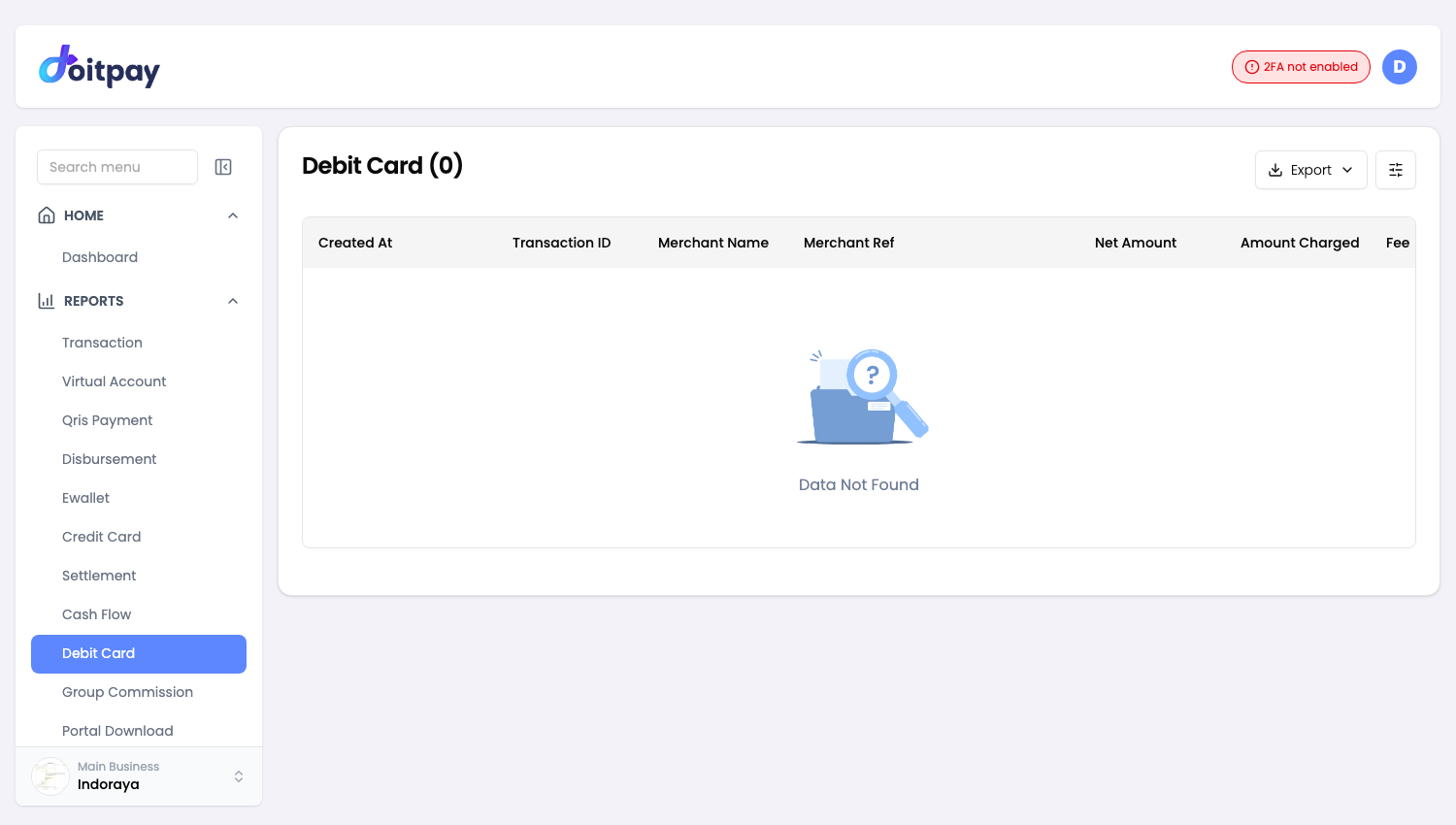
Navigate to REPORTS > Debit Card from the sidebar.
The page title shows the total number of records, for example "Debit Card (12)".
Understanding the Table
| Column | What it shows |
|---|---|
| Created At | When the transaction was created |
| Transaction ID | Doitpay identifier for the transaction |
| Merchant Name | Business that received the payment |
| Merchant Ref | Your internal order reference |
| Net Amount | Amount credited to you after fees |
| Amount Charged | Amount the customer paid |
| Fee | Transaction processing fee |
| Status | Current payment state |
| Reference ID | Doitpay reference for cross-checking against other reports |
| Payment Date | When the payment completed |
Tip
Sort your reconciliation on Merchant Ref when you are matching Doitpay records against your own system. It is the reference your system generated, so it lines up with your order records.
Transaction Status
| Status | Meaning | What to do |
|---|---|---|
| Paid | Payment completed successfully | Funds will be settled |
| Pending | Waiting for the customer or their bank to confirm | Wait, no action needed |
| Expired | The debit was not approved in time | Ask the customer to try again |
| Failed | The debit could not be completed | Ask the customer to check their account or use another method |
| Refunded | Payment was returned to the customer | Confirm the refund was intended |
Exporting Data
Click Export in the toolbar and choose a format.
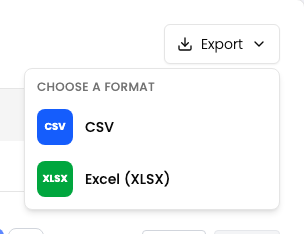
| Format | Best for |
|---|---|
| CSV | Plain data, importing into another tool, very large date ranges |
| Excel (XLSX) | Opening straight in Excel or Google Sheets with formatting preserved |
Use this to export your debit card transactions.
The export matches the filters you have applied on the page, so set your date range and any other filters first.
The file is prepared in the background instead of downloading straight away. After you choose a format, the dashboard opens Portal Download where the job appears. When its status shows COMPLETED, click Download on that row.
Filters travel with the export
The file matches what the table shows. If the table is filtered to one status, the file contains only those rows. Clear your filters first if you want everything.
Common Questions
Q: What is the difference between Debit Card and Credit Card reports?
Debit Card covers payments that debit the customer's bank account directly. Credit Card covers Visa and Mastercard payments, including credit and prepaid cards. They are separate pages, so check both when you are reconciling a customer's payments.
Q: Why is a debit card payment still pending?
The customer may not have completed their approval, or their bank has not confirmed yet. Pending payments clear or expire on their own. If one stays pending longer than expected, send the reference ID to support.
Q: Can I refund a debit card payment?
Contact your account manager to process a refund. Refunds are handled from the Doitpay side.
Q: Are bank account numbers stored?
Account numbers are masked in the dashboard. Full details are never displayed.
Q: Does the export include every debit card transaction?
It includes what the table shows for the date range and filters you set. Use a wide enough range and clear any filters before exporting if you want the full history.
Best Practices
- Reconcile by Merchant Ref: it matches the reference your own system generated
- Check the Fee column: Net Amount is what lands in your balance, not Amount Charged
- Watch pending payments: follow up with customers if a debit stays pending
- Filter before exporting: a focused export is easier to reconcile
- Check both card reports: debit and credit card payments live on separate pages